> ## Documentation Index
> Fetch the complete documentation index at: https://docs.olostep.com/llms.txt
> Use this file to discover all available pages before exploring further.
# Olostep + n8n
> Add web scraping, search, batch jobs, crawls, and site maps to any n8n workflow, no code required.
The verified [Olostep Web Scraper node](https://n8n.io/integrations/olostep-web-scraper/) gives you six operations inside n8n's visual builder: scrape a URL, search the web, get AI answers, batch-scrape thousands of URLs, crawl a site, or map all its links.
[View on n8n →](https://n8n.io/integrations/olostep-web-scraper/)
## Before you start
* **An Olostep account with an API key:** [get one free](https://olostep.com/dashboard), no credit card required. Your first 500 credits are included.
* **n8n running:** either [n8n Cloud](https://n8n.io/cloud/) or a self-hosted instance. Community nodes must be enabled (they are by default on most setups).
* **No coding required:** everything in this guide is done through n8n's visual editor.
***
## Setup
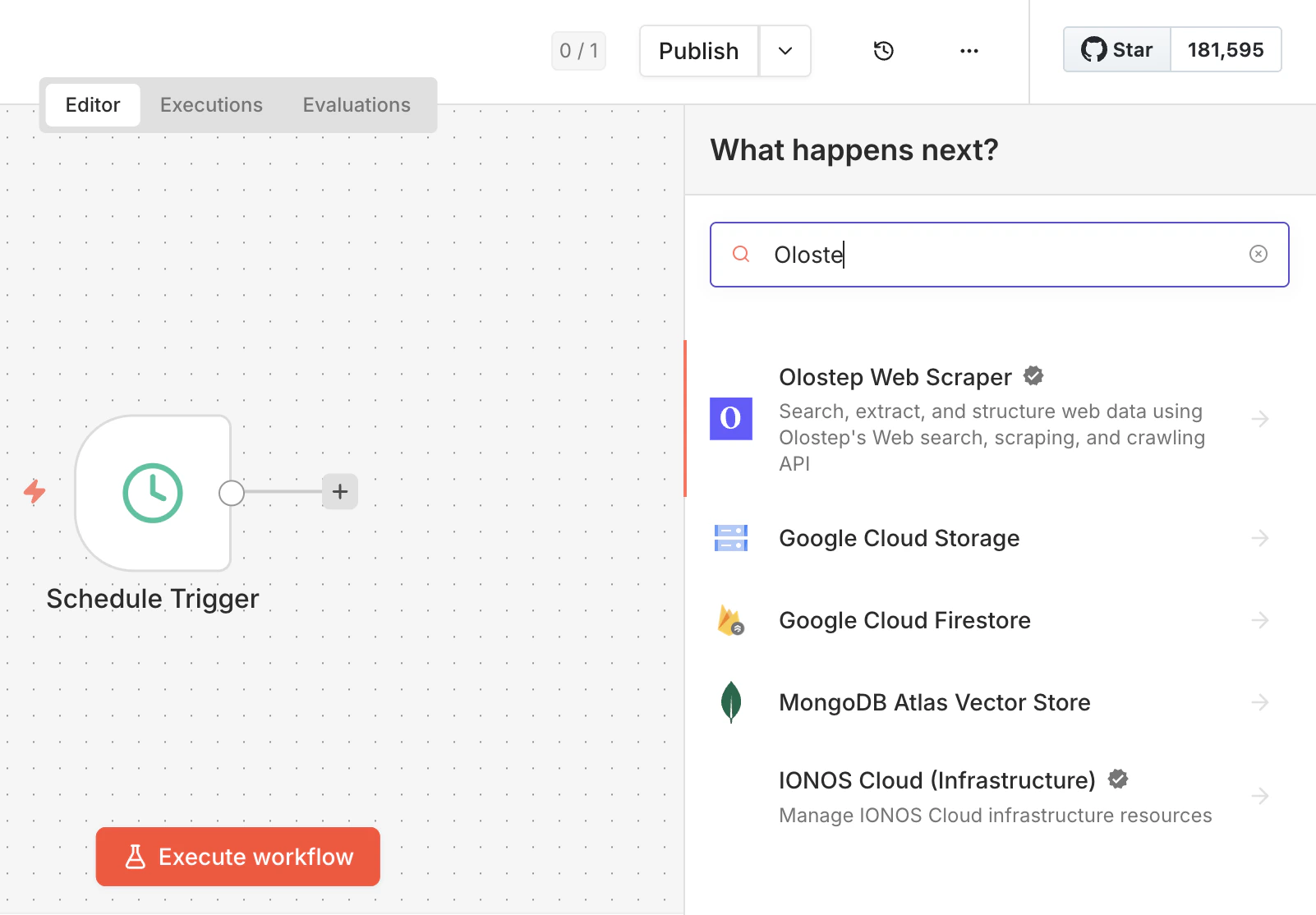
Open any workflow, click **+**, and search for **Olostep**. Select **Olostep Web Scraper** from the results.
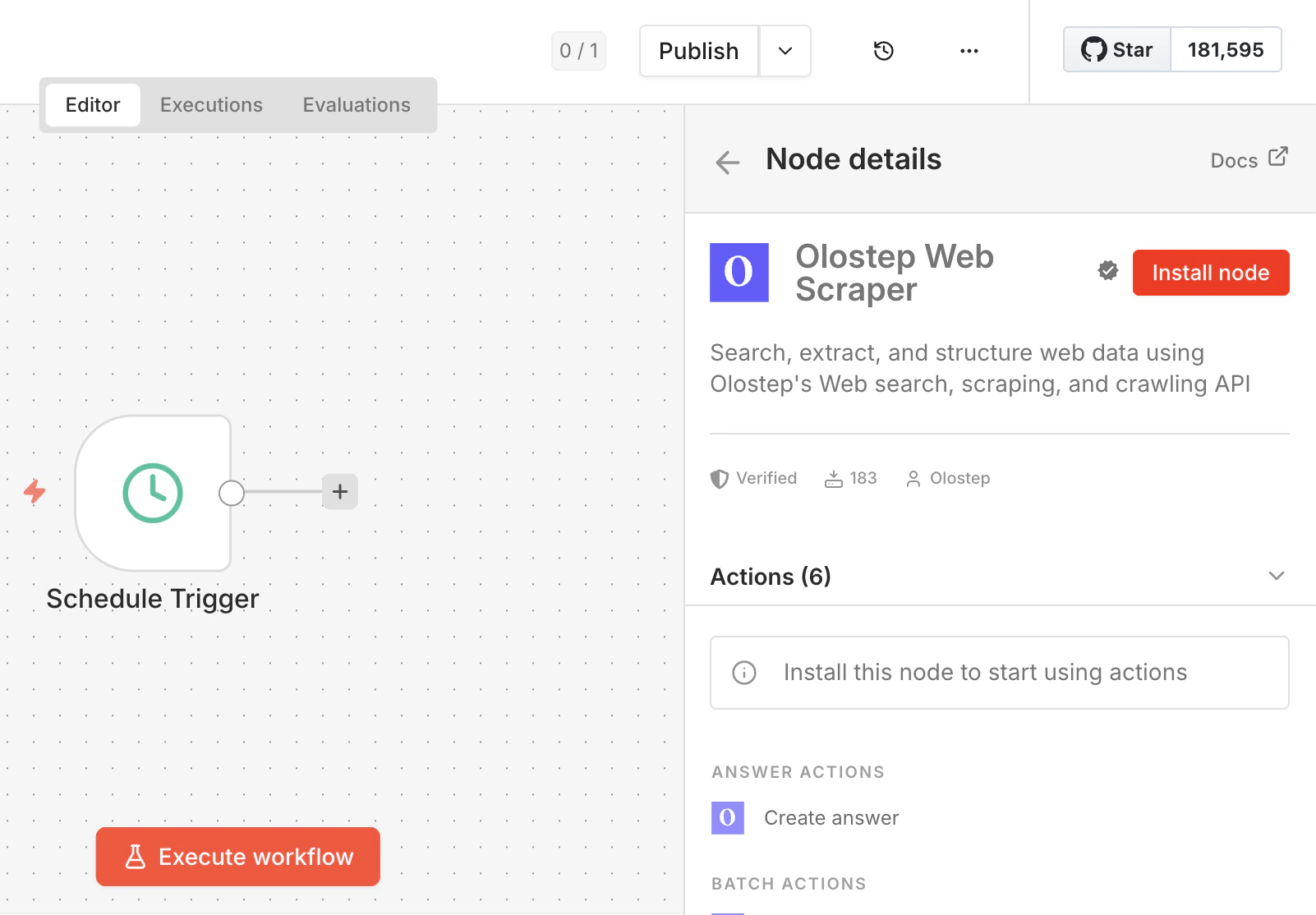
 Click the result to open the Node details panel, then click **Install node**. n8n will install `n8n-nodes-olostep` and prompt you to restart. Do that before continuing.
 If **Community Nodes** is disabled for your workspace, an admin needs to enable it first. See the [n8n community nodes guide](https://docs.n8n.io/integrations/community-nodes/installation/).
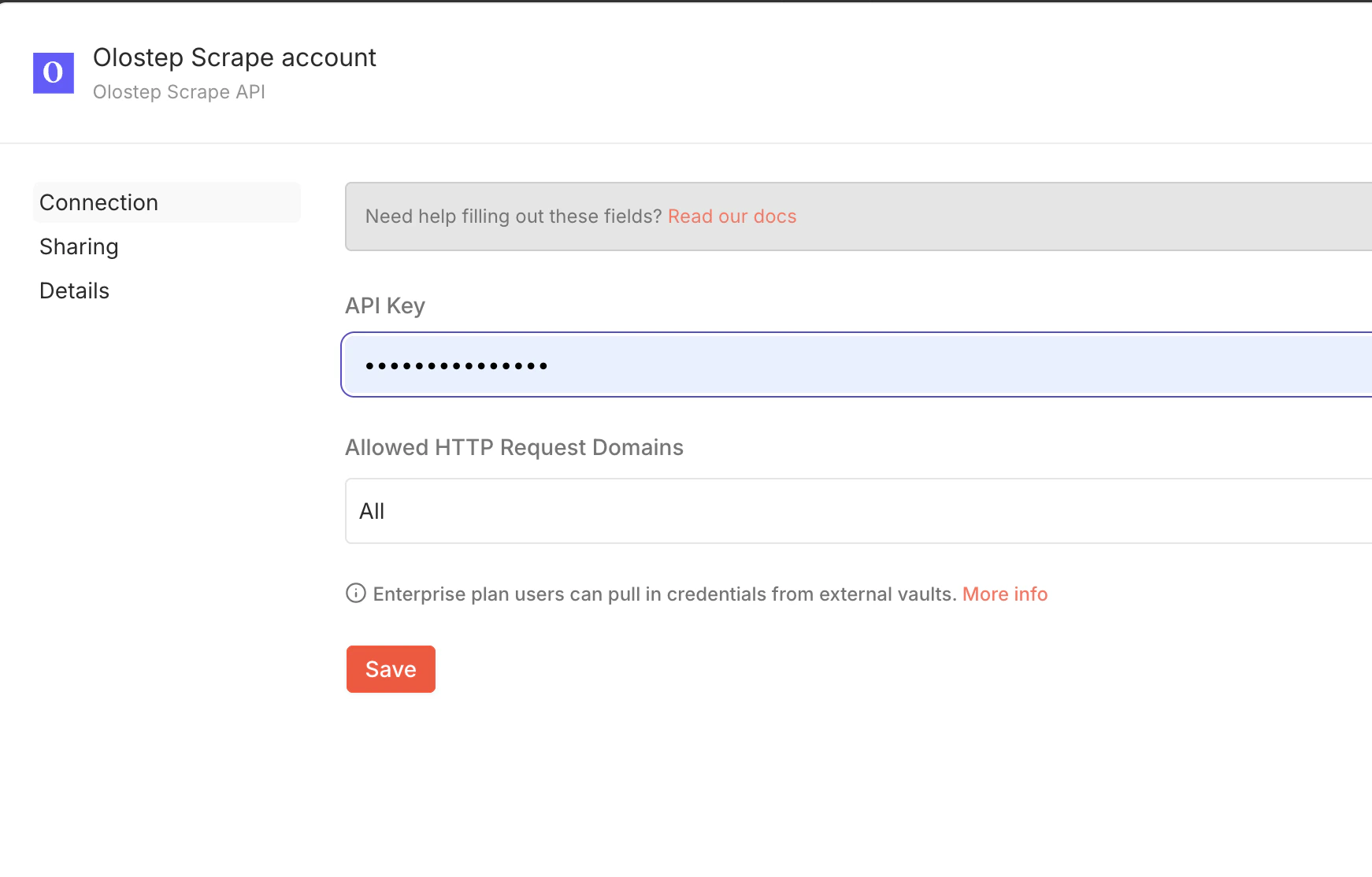
Open the Olostep node in your workflow, click **Set up Credential** (in the Parameters tab), add your API key, and click **Save**.
If **Community Nodes** is disabled for your workspace, an admin needs to enable it first. See the [n8n community nodes guide](https://docs.n8n.io/integrations/community-nodes/installation/).
Open the Olostep node in your workflow, click **Set up Credential** (in the Parameters tab), add your API key, and click **Save**.
 Get your key from the [Olostep dashboard →](https://olostep.com/dashboard)
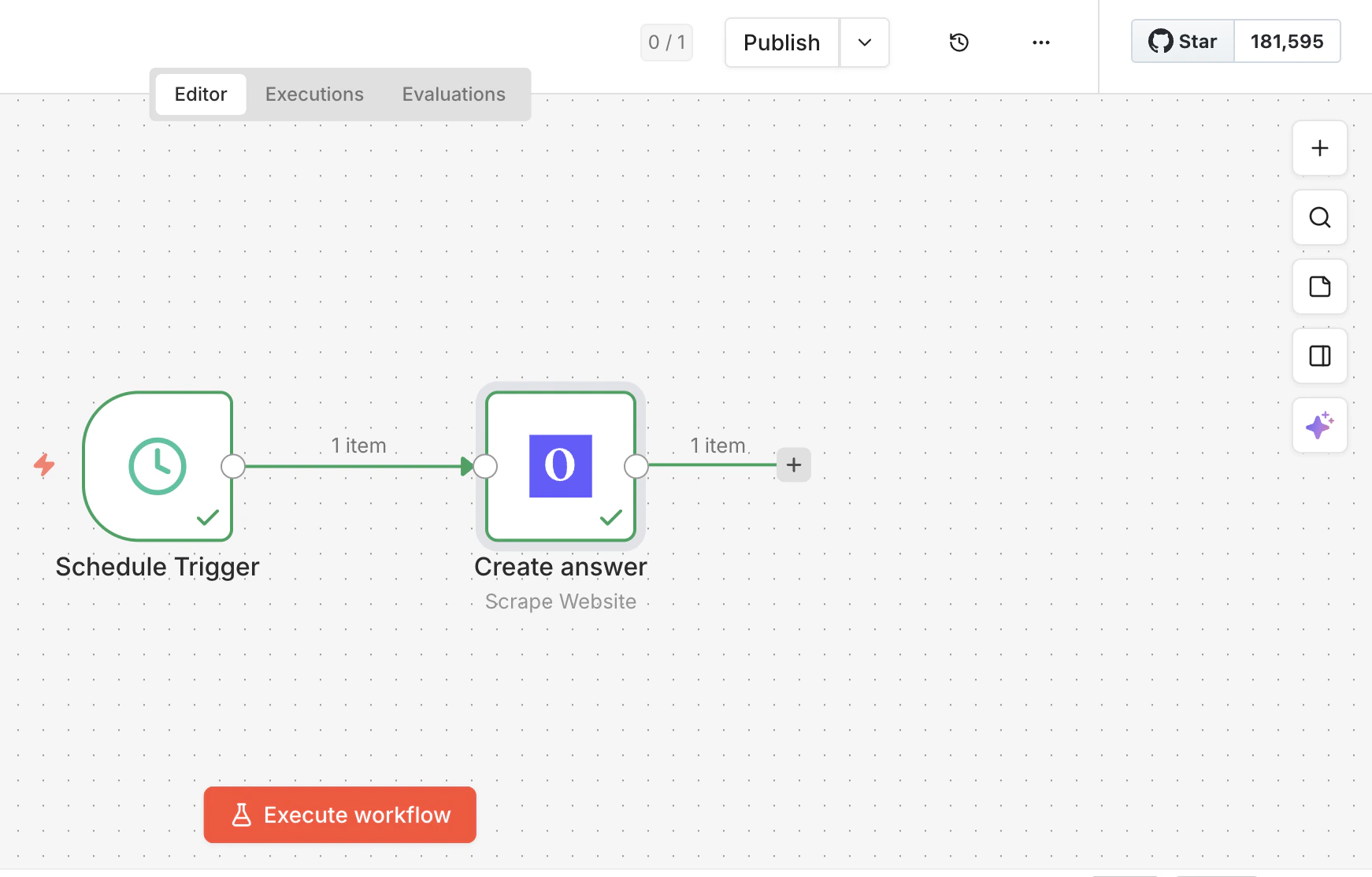
Connect the Olostep node to a trigger and any downstream steps, then execute your workflow.
Get your key from the [Olostep dashboard →](https://olostep.com/dashboard)
Connect the Olostep node to a trigger and any downstream steps, then execute your workflow.
 ***
## Actions
Pull content from any URL as Markdown, HTML, JSON, or plain text. Handles JS-rendered pages with optional wait times and country targeting.
Run a web search and get structured results (titles, URLs, and snippets) as JSON.
Ask a natural-language question and get an answer with cited sources. Useful before LLM nodes when you need grounded responses.
Submit up to 10,000 URLs in one job, processed in parallel. Returns a `batch_id`; retrieve results asynchronously.
Start from a URL, follow links, and scrape all subpages. Good for docs sites, blogs, or full-site ingestion. Returns a `crawl_id`.
Get every URL on a site without scraping content. Use it for discovery before a batch job. Returns a `map_id`.
**Batch, Crawl, and Map are async.** Store the returned ID and use a Wait node or a second workflow to retrieve results once processing completes.
***
## Example workflow: Lead enrichment from Google Sheets
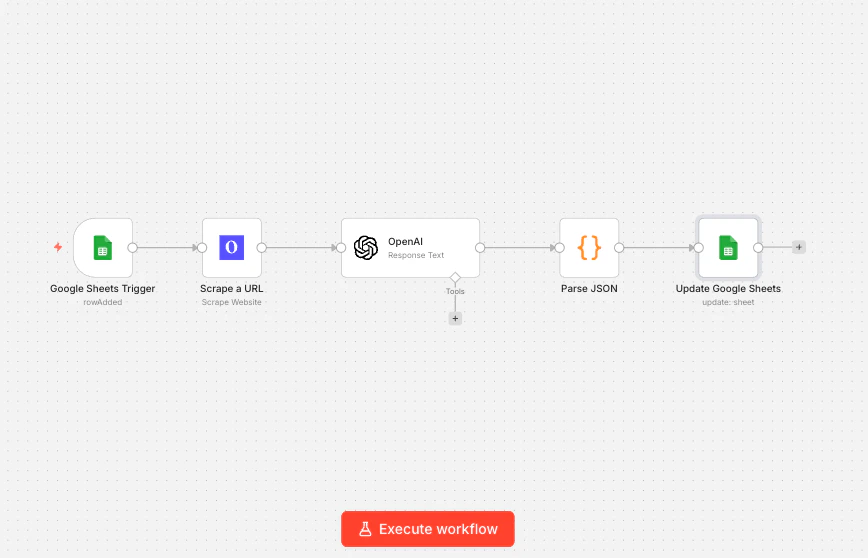
**What it does:** When you paste a company URL into a Google Sheet, this workflow automatically scrapes the company's website, extracts key information with an AI node, and writes the results back to the same row, turning a blank spreadsheet into a filled-out lead database.
**Nodes used:** Google Sheets trigger → Olostep Scrape Website → OpenAI → Code → Google Sheets update
***
## Actions
Pull content from any URL as Markdown, HTML, JSON, or plain text. Handles JS-rendered pages with optional wait times and country targeting.
Run a web search and get structured results (titles, URLs, and snippets) as JSON.
Ask a natural-language question and get an answer with cited sources. Useful before LLM nodes when you need grounded responses.
Submit up to 10,000 URLs in one job, processed in parallel. Returns a `batch_id`; retrieve results asynchronously.
Start from a URL, follow links, and scrape all subpages. Good for docs sites, blogs, or full-site ingestion. Returns a `crawl_id`.
Get every URL on a site without scraping content. Use it for discovery before a batch job. Returns a `map_id`.
**Batch, Crawl, and Map are async.** Store the returned ID and use a Wait node or a second workflow to retrieve results once processing completes.
***
## Example workflow: Lead enrichment from Google Sheets
**What it does:** When you paste a company URL into a Google Sheet, this workflow automatically scrapes the company's website, extracts key information with an AI node, and writes the results back to the same row, turning a blank spreadsheet into a filled-out lead database.
**Nodes used:** Google Sheets trigger → Olostep Scrape Website → OpenAI → Code → Google Sheets update
 ***
### Step 1: Set up your Google Sheet
Create a sheet with these columns: `Company URL`, `Industry`, `Description`, `Company Size`, `Enriched`. The workflow reads from `Company URL` and fills in the rest.
### Step 2: Add a Google Sheets trigger
In n8n, add a **Google Sheets** trigger node. Set the event to **Row Added**, point it at your sheet, and set it to watch the `Company URL` column. Now every time you paste a new URL into the sheet, this workflow fires.
### Step 3: Add Olostep Scrape Website
Connect an **Olostep Web Scraper** node after the trigger. Set:
* **Action:** Scrape Website
* **URL:** `{{ $json["Company URL"] }}` (pulls the URL from the new row)
* **Output Format:** Markdown
Markdown works best here because it strips navigation, ads, and boilerplate. The AI node in the next step gets clean prose about the company instead of raw HTML noise.
### Step 4: Add an OpenAI node
Connect an **OpenAI** node. Set the model to `gpt-4o-mini` (fast and cheap for extraction tasks) and use this prompt:
```
You are a sales researcher. Based on the company website content below, extract:
1. Industry (one phrase, e.g. "B2B SaaS", "E-commerce", "Healthcare")
2. One-sentence company description (max 20 words)
3. Estimated company size (Startup / SMB / Mid-market / Enterprise)
Return only a JSON object with keys: industry, description, company_size.
Website content:
{{ $json.markdownContent }}
```
The `markdownContent` field is what Olostep returns from the scrape, as clean plain text.
### Step 5: Parse the AI response and write back
Add a **Code** node to parse the JSON from OpenAI:
```js theme={null}
const parsed = JSON.parse($input.first().json.message.content);
return [{ json: parsed }];
```
Then connect a **Google Sheets** node set to **Update Row**. Map the columns:
* `Industry` → `{{ $json.industry }}`
* `Description` → `{{ $json.description }}`
* `Company Size` → `{{ $json.company_size }}`
* `Enriched` → `Yes`
### What you get
Paste a URL like `https://notion.so` into your sheet, and within \~10 seconds the row fills in:
| Company URL | Industry | Description | Company Size | Enriched |
| -------------------------------------- | ----------------- | --------------------------------------------------- | ------------ | -------- |
| [https://notion.so](https://notion.so) | Productivity SaaS | All-in-one workspace for notes, docs, and databases | Mid-market | Yes |
From here you can extend this workflow: add a Slack notification when enrichment completes, filter by industry before writing back, or replace Google Sheets with HubSpot to update contacts directly.
***
## Templates
Ready-to-import n8n workflows built with Olostep:
Crawl documentation sites with Olostep and structure the output into an AI-ready knowledge base.
Scrape business leads from Google Maps and enrich them with decision-maker details.
Analyze complaints with Olostep + Gemini and generate structured insight reports in Google Docs.
Extract Amazon product URLs and metadata with Olostep, then sync the results to Sheets.
[Browse all Olostep workflows on n8n.io →](https://n8n.io/workflows/?q=olostep)
***
## Parsers
Add a parser ID to the **Parser** field on any Scrape or Batch action to get structured data instead of raw content:
| Parser | Extracts |
| ---------------------------- | ------------------------------------------------ |
| `@olostep/amazon-product` | Title, price, rating, reviews, images, variants |
| `@olostep/google-search` | Result titles, URLs, snippets |
| `@olostep/google-maps` | Business name, address, rating, reviews |
| `@olostep/extract-emails` | Email addresses from any page |
| `@olostep/extract-socials` | Social profile links (X, GitHub, LinkedIn, etc.) |
| `@olostep/extract-calendars` | Google Calendar and ICS links |
See the full list in the [Olostep parser store →](https://www.olostep.com/store)
***
## Troubleshooting
Copy the key directly from [olostep.com/dashboard](https://olostep.com/dashboard) with no trailing spaces. Delete and recreate the credential in n8n if the error persists.
Increase **Wait Before Scraping** (try 2000–5000ms for JS-heavy pages). Confirm the URL is publicly accessible without a login. If a specific domain is consistently failing, contact [info@olostep.com](mailto:info@olostep.com).
The **URLs to Scrape** field expects a JSON array:
```json theme={null}
[
{ "url": "https://example.com/page-1", "custom_id": "p1" },
{ "url": "https://example.com/page-2", "custom_id": "p2" }
]
```
Use a Code node upstream to build this array from your data if needed.
Add a **Wait** node between scrape steps, or switch to **Batch Scrape URLs** instead of looping single scrapes. Check current usage in the [dashboard](https://olostep.com/dashboard).
On n8n Cloud, community nodes must be enabled by a workspace owner. On self-hosted, make sure `N8N_COMMUNITY_PACKAGES_ENABLED=true` is set in your environment. See [n8n's installation guide](https://docs.n8n.io/integrations/community-nodes/installation/).
***
## Related
Full reference for the scrape endpoint
How batch jobs work and how to retrieve results
Crawl configuration and result retrieval
URL discovery and filtering options
## Get Started
Ready to automate your web search, scraping, and crawling workflows?
n8n platform
Install n8n-nodes-olostep and start building automated workflows
Connect Olostep with n8n and automate your web data extraction today!
***
### Step 1: Set up your Google Sheet
Create a sheet with these columns: `Company URL`, `Industry`, `Description`, `Company Size`, `Enriched`. The workflow reads from `Company URL` and fills in the rest.
### Step 2: Add a Google Sheets trigger
In n8n, add a **Google Sheets** trigger node. Set the event to **Row Added**, point it at your sheet, and set it to watch the `Company URL` column. Now every time you paste a new URL into the sheet, this workflow fires.
### Step 3: Add Olostep Scrape Website
Connect an **Olostep Web Scraper** node after the trigger. Set:
* **Action:** Scrape Website
* **URL:** `{{ $json["Company URL"] }}` (pulls the URL from the new row)
* **Output Format:** Markdown
Markdown works best here because it strips navigation, ads, and boilerplate. The AI node in the next step gets clean prose about the company instead of raw HTML noise.
### Step 4: Add an OpenAI node
Connect an **OpenAI** node. Set the model to `gpt-4o-mini` (fast and cheap for extraction tasks) and use this prompt:
```
You are a sales researcher. Based on the company website content below, extract:
1. Industry (one phrase, e.g. "B2B SaaS", "E-commerce", "Healthcare")
2. One-sentence company description (max 20 words)
3. Estimated company size (Startup / SMB / Mid-market / Enterprise)
Return only a JSON object with keys: industry, description, company_size.
Website content:
{{ $json.markdownContent }}
```
The `markdownContent` field is what Olostep returns from the scrape, as clean plain text.
### Step 5: Parse the AI response and write back
Add a **Code** node to parse the JSON from OpenAI:
```js theme={null}
const parsed = JSON.parse($input.first().json.message.content);
return [{ json: parsed }];
```
Then connect a **Google Sheets** node set to **Update Row**. Map the columns:
* `Industry` → `{{ $json.industry }}`
* `Description` → `{{ $json.description }}`
* `Company Size` → `{{ $json.company_size }}`
* `Enriched` → `Yes`
### What you get
Paste a URL like `https://notion.so` into your sheet, and within \~10 seconds the row fills in:
| Company URL | Industry | Description | Company Size | Enriched |
| -------------------------------------- | ----------------- | --------------------------------------------------- | ------------ | -------- |
| [https://notion.so](https://notion.so) | Productivity SaaS | All-in-one workspace for notes, docs, and databases | Mid-market | Yes |
From here you can extend this workflow: add a Slack notification when enrichment completes, filter by industry before writing back, or replace Google Sheets with HubSpot to update contacts directly.
***
## Templates
Ready-to-import n8n workflows built with Olostep:
Crawl documentation sites with Olostep and structure the output into an AI-ready knowledge base.
Scrape business leads from Google Maps and enrich them with decision-maker details.
Analyze complaints with Olostep + Gemini and generate structured insight reports in Google Docs.
Extract Amazon product URLs and metadata with Olostep, then sync the results to Sheets.
[Browse all Olostep workflows on n8n.io →](https://n8n.io/workflows/?q=olostep)
***
## Parsers
Add a parser ID to the **Parser** field on any Scrape or Batch action to get structured data instead of raw content:
| Parser | Extracts |
| ---------------------------- | ------------------------------------------------ |
| `@olostep/amazon-product` | Title, price, rating, reviews, images, variants |
| `@olostep/google-search` | Result titles, URLs, snippets |
| `@olostep/google-maps` | Business name, address, rating, reviews |
| `@olostep/extract-emails` | Email addresses from any page |
| `@olostep/extract-socials` | Social profile links (X, GitHub, LinkedIn, etc.) |
| `@olostep/extract-calendars` | Google Calendar and ICS links |
See the full list in the [Olostep parser store →](https://www.olostep.com/store)
***
## Troubleshooting
Copy the key directly from [olostep.com/dashboard](https://olostep.com/dashboard) with no trailing spaces. Delete and recreate the credential in n8n if the error persists.
Increase **Wait Before Scraping** (try 2000–5000ms for JS-heavy pages). Confirm the URL is publicly accessible without a login. If a specific domain is consistently failing, contact [info@olostep.com](mailto:info@olostep.com).
The **URLs to Scrape** field expects a JSON array:
```json theme={null}
[
{ "url": "https://example.com/page-1", "custom_id": "p1" },
{ "url": "https://example.com/page-2", "custom_id": "p2" }
]
```
Use a Code node upstream to build this array from your data if needed.
Add a **Wait** node between scrape steps, or switch to **Batch Scrape URLs** instead of looping single scrapes. Check current usage in the [dashboard](https://olostep.com/dashboard).
On n8n Cloud, community nodes must be enabled by a workspace owner. On self-hosted, make sure `N8N_COMMUNITY_PACKAGES_ENABLED=true` is set in your environment. See [n8n's installation guide](https://docs.n8n.io/integrations/community-nodes/installation/).
***
## Related
Full reference for the scrape endpoint
How batch jobs work and how to retrieve results
Crawl configuration and result retrieval
URL discovery and filtering options
## Get Started
Ready to automate your web search, scraping, and crawling workflows?
n8n platform
Install n8n-nodes-olostep and start building automated workflows
Connect Olostep with n8n and automate your web data extraction today!