> ## Documentation Index
> Fetch the complete documentation index at: https://docs.olostep.com/llms.txt
> Use this file to discover all available pages before exploring further.
# Olostep + Relay
> Add web scraping, AI-powered research, batch jobs, crawls, and site maps to any Relay workflow, no code required.
The verified [Olostep app on Relay](https://www.relay.app/apps/olostep/integrations) gives you two actions inside Relay's visual builder: scrape a URL or map all links on a site.
[View on Relay →](https://www.relay.app/apps/olostep/integrations)
## Before you start
* **An Olostep account with an API key:** [get one free](https://olostep.com/dashboard), no credit card required. Your first 500 credits are included.
* **A Relay account:** create one at [relay.app](https://www.relay.app/).
* **No coding required:** everything in this guide is done through Relay's visual editor.
***
## Setup
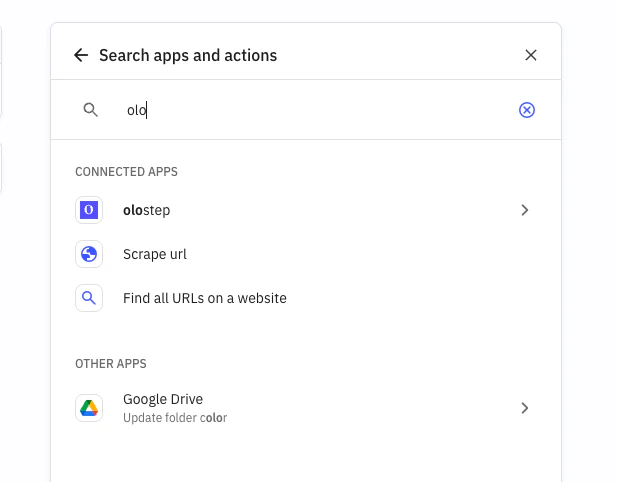
Open a workflow in Relay, add a step, and search for **Olostep**. Select **Olostep** from the app list.
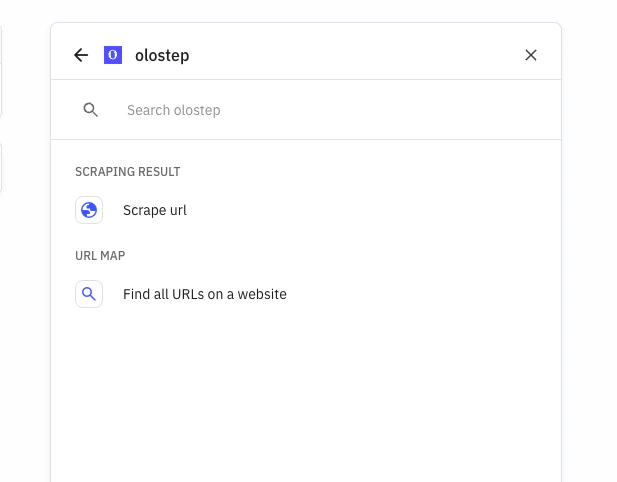
 After selecting **Olostep**, choose one of the available Olostep actions in the step configuration.
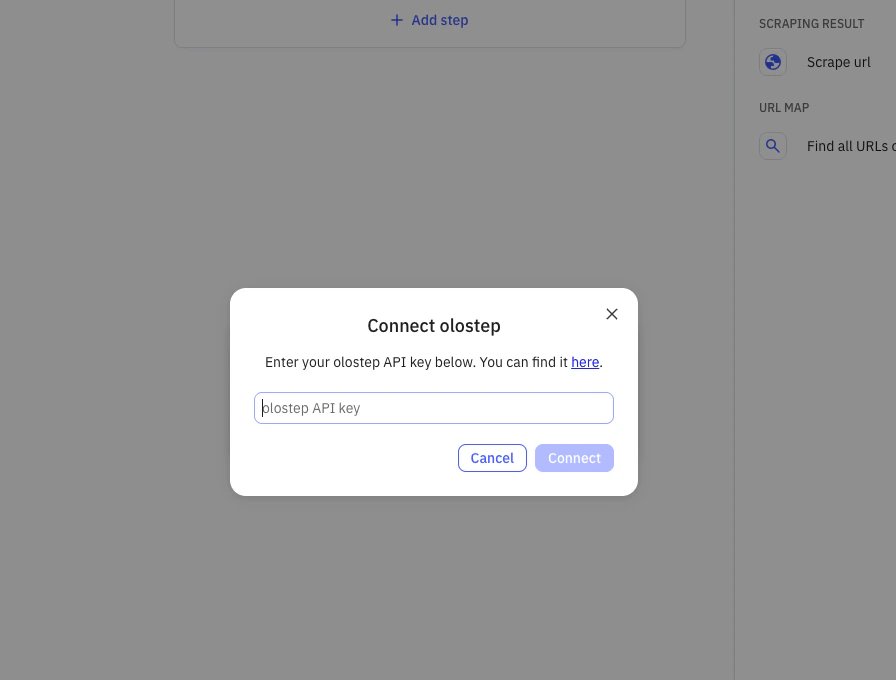
 Click **Connect account**, paste your Olostep API key, and authorize the connection. Relay will save this account for future workflows.
 Get your key from the [Olostep dashboard →](https://olostep.com/dashboard)
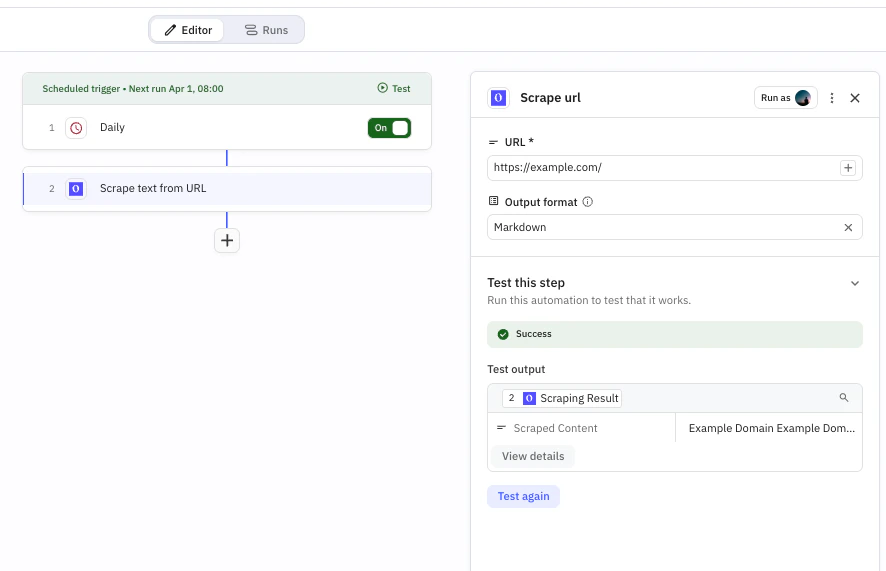
* **URL to Scrape:** map from a previous step or enter manually
* **Output Format:** choose `Markdown`, `HTML`, `JSON`, or `Text`
Get your key from the [Olostep dashboard →](https://olostep.com/dashboard)
* **URL to Scrape:** map from a previous step or enter manually
* **Output Format:** choose `Markdown`, `HTML`, `JSON`, or `Text`
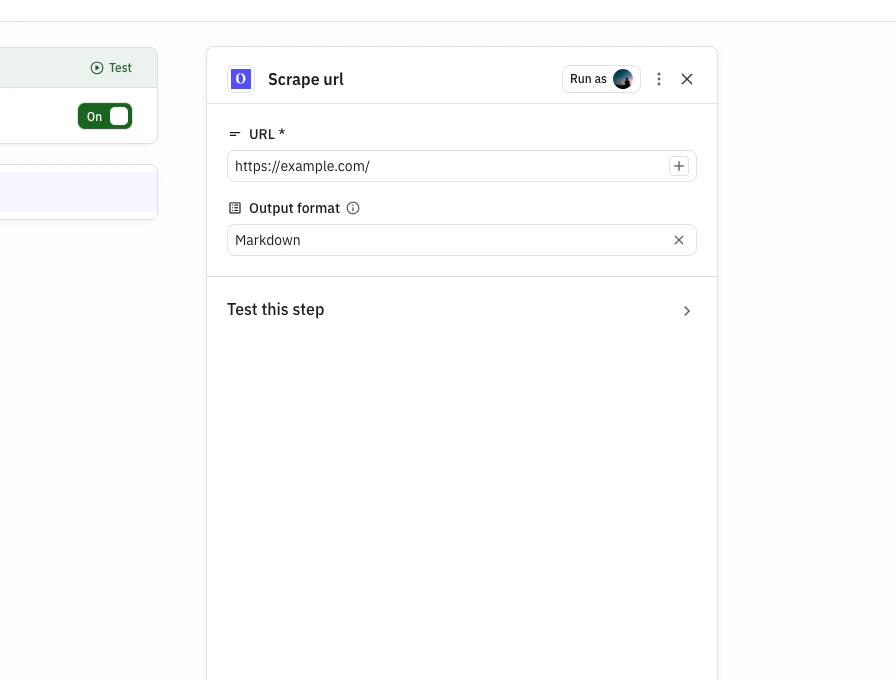 Run a test to verify output, then publish or turn on the workflow once results look correct.
 ***
## Actions
Pull content from any URL as Markdown, HTML, JSON, or plain text. Handles JS-rendered pages with optional wait times and country targeting.
Get every URL on a site without scraping content. Use it for discovery before a batch job. Returns a `map_id`.
**Map is async.** Store the returned `map_id` and use a delay/poll pattern in Relay to retrieve results once processing completes.
***
## Example workflow: Scheduled competitor page scrape
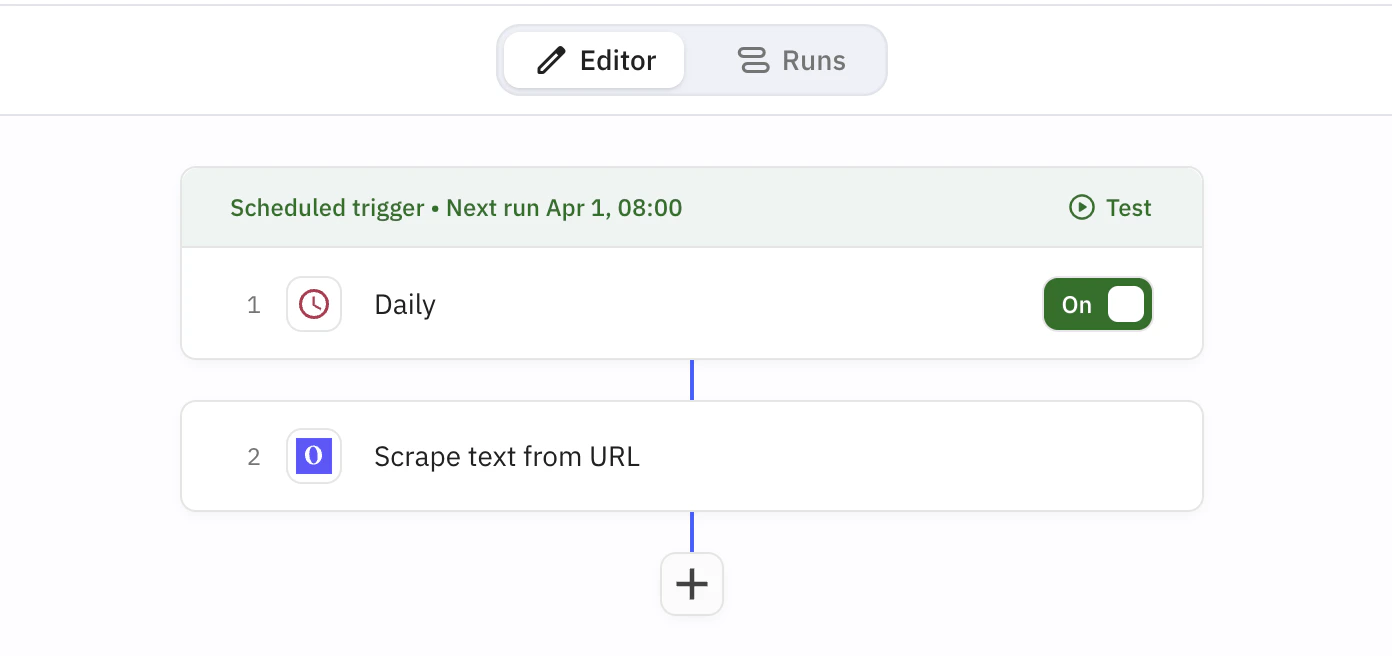
**What it does:** On a schedule, this workflow scrapes a competitor page and stores clean content you can reuse in downstream Relay steps.
**Nodes used:** Schedule -> Olostep Scrape Website
***
## Actions
Pull content from any URL as Markdown, HTML, JSON, or plain text. Handles JS-rendered pages with optional wait times and country targeting.
Get every URL on a site without scraping content. Use it for discovery before a batch job. Returns a `map_id`.
**Map is async.** Store the returned `map_id` and use a delay/poll pattern in Relay to retrieve results once processing completes.
***
## Example workflow: Scheduled competitor page scrape
**What it does:** On a schedule, this workflow scrapes a competitor page and stores clean content you can reuse in downstream Relay steps.
**Nodes used:** Schedule -> Olostep Scrape Website
 ***
### Step 1: Add a schedule trigger
Create a workflow and add a schedule trigger (for example, every weekday at 8 AM).
### Step 2: Add Olostep Scrape Website
Add an **Olostep** step and select **Scrape Website**. Set:
* **URL:** `https://competitor.com/blog`
* **Output Format:** Markdown
### Step 3: Test and publish
Run a test to confirm the output, then publish or turn on the workflow.
### What you get
Every run produces clean page content ready for analysis or routing:
> **Scrape Result**
>
> * Source URL
> * Retrieved content in your selected format
> * Timestamped run output in Relay
***
## Parsers
Add a parser ID to the **Parser** field on the Scrape action to get structured data instead of raw content:
| Parser | Extracts |
| ---------------------------- | ------------------------------------------------ |
| `@olostep/amazon-product` | Title, price, rating, reviews, images, variants |
| `@olostep/google-search` | Result titles, URLs, snippets |
| `@olostep/google-maps` | Business name, address, rating, reviews |
| `@olostep/extract-emails` | Email addresses from any page |
| `@olostep/extract-socials` | Social profile links (X, GitHub, LinkedIn, etc.) |
| `@olostep/extract-calendars` | Google Calendar and ICS links |
See the full list in the [Olostep parser store →](https://www.olostep.com/store)
***
## Relay.app vs Zapier
Relay.app is a strong alternative to Zapier for workflows that need built-in review and AI-first orchestration.
**Relay.app advantages:**
* **Human-in-the-loop:** native approval and review steps in the workflow
* **AI-first workflow design:** easier to add AI decisions and summaries as first-class steps
* **Workflow clarity:** clean visual builder with clear run context and step outputs
**When Zapier may be better:**
* You need coverage for a niche app only available on Zapier
* Your team already has many existing Zaps and operational tooling around Zapier
If both platforms support your stack, choose Relay when review + AI collaboration are central to your process.
***
## Troubleshooting
Copy the key directly from [olostep.com/dashboard](https://olostep.com/dashboard) with no trailing spaces. Reconnect the Olostep account in Relay if the error persists.
Increase **Wait Before Scraping** (try 2000–5000ms for JS-heavy pages). Confirm the URL is publicly accessible without login. If one domain consistently fails, contact [info@olostep.com](mailto:info@olostep.com).
Add delays between scrape-heavy runs and retry with backoff for large workflows. Check current usage in the [dashboard](https://olostep.com/dashboard).
Maps are async. Store the returned `map_id` first, then fetch results in a later step/run once processing is complete.
***
## Related
Full reference for the scrape endpoint
How batch jobs work and how to retrieve results
Crawl configuration and result retrieval
URL discovery and filtering options
***
### Step 1: Add a schedule trigger
Create a workflow and add a schedule trigger (for example, every weekday at 8 AM).
### Step 2: Add Olostep Scrape Website
Add an **Olostep** step and select **Scrape Website**. Set:
* **URL:** `https://competitor.com/blog`
* **Output Format:** Markdown
### Step 3: Test and publish
Run a test to confirm the output, then publish or turn on the workflow.
### What you get
Every run produces clean page content ready for analysis or routing:
> **Scrape Result**
>
> * Source URL
> * Retrieved content in your selected format
> * Timestamped run output in Relay
***
## Parsers
Add a parser ID to the **Parser** field on the Scrape action to get structured data instead of raw content:
| Parser | Extracts |
| ---------------------------- | ------------------------------------------------ |
| `@olostep/amazon-product` | Title, price, rating, reviews, images, variants |
| `@olostep/google-search` | Result titles, URLs, snippets |
| `@olostep/google-maps` | Business name, address, rating, reviews |
| `@olostep/extract-emails` | Email addresses from any page |
| `@olostep/extract-socials` | Social profile links (X, GitHub, LinkedIn, etc.) |
| `@olostep/extract-calendars` | Google Calendar and ICS links |
See the full list in the [Olostep parser store →](https://www.olostep.com/store)
***
## Relay.app vs Zapier
Relay.app is a strong alternative to Zapier for workflows that need built-in review and AI-first orchestration.
**Relay.app advantages:**
* **Human-in-the-loop:** native approval and review steps in the workflow
* **AI-first workflow design:** easier to add AI decisions and summaries as first-class steps
* **Workflow clarity:** clean visual builder with clear run context and step outputs
**When Zapier may be better:**
* You need coverage for a niche app only available on Zapier
* Your team already has many existing Zaps and operational tooling around Zapier
If both platforms support your stack, choose Relay when review + AI collaboration are central to your process.
***
## Troubleshooting
Copy the key directly from [olostep.com/dashboard](https://olostep.com/dashboard) with no trailing spaces. Reconnect the Olostep account in Relay if the error persists.
Increase **Wait Before Scraping** (try 2000–5000ms for JS-heavy pages). Confirm the URL is publicly accessible without login. If one domain consistently fails, contact [info@olostep.com](mailto:info@olostep.com).
Add delays between scrape-heavy runs and retry with backoff for large workflows. Check current usage in the [dashboard](https://olostep.com/dashboard).
Maps are async. Store the returned `map_id` first, then fetch results in a later step/run once processing is complete.
***
## Related
Full reference for the scrape endpoint
How batch jobs work and how to retrieve results
Crawl configuration and result retrieval
URL discovery and filtering options