> ## Documentation Index
> Fetch the complete documentation index at: https://docs.olostep.com/llms.txt
> Use this file to discover all available pages before exploring further.
# Olostep + ViaSocket
> Connect Olostep to any AI client — Claude, Cursor, ChatGPT, and more — using ViaSocket Mushrooms as an MCP gateway.
[ViaSocket Mushrooms](https://mushrooms.viasocket.com/) is an MCP gateway that bridges apps like Olostep to any AI client through a single MCP endpoint URL. Once you connect Olostep as a Mushroom, you can instruct Claude, Cursor, ChatGPT, or any other supported client to scrape websites, run batch jobs, crawl sites, and get AI-grounded answers — all in plain language, without writing a single line of code.
## Before you start
* **An Olostep account with an API key:** [get one free](https://olostep.com/dashboard), no credit card required. Your first 500 credits are included.
* **A ViaSocket account:** create one at [viasocket.com](https://viasocket.com/).
* **An AI client:** Claude, Cursor, ChatGPT, Windsurf, VS Code, or any MCP-compatible client.
***
## Setup
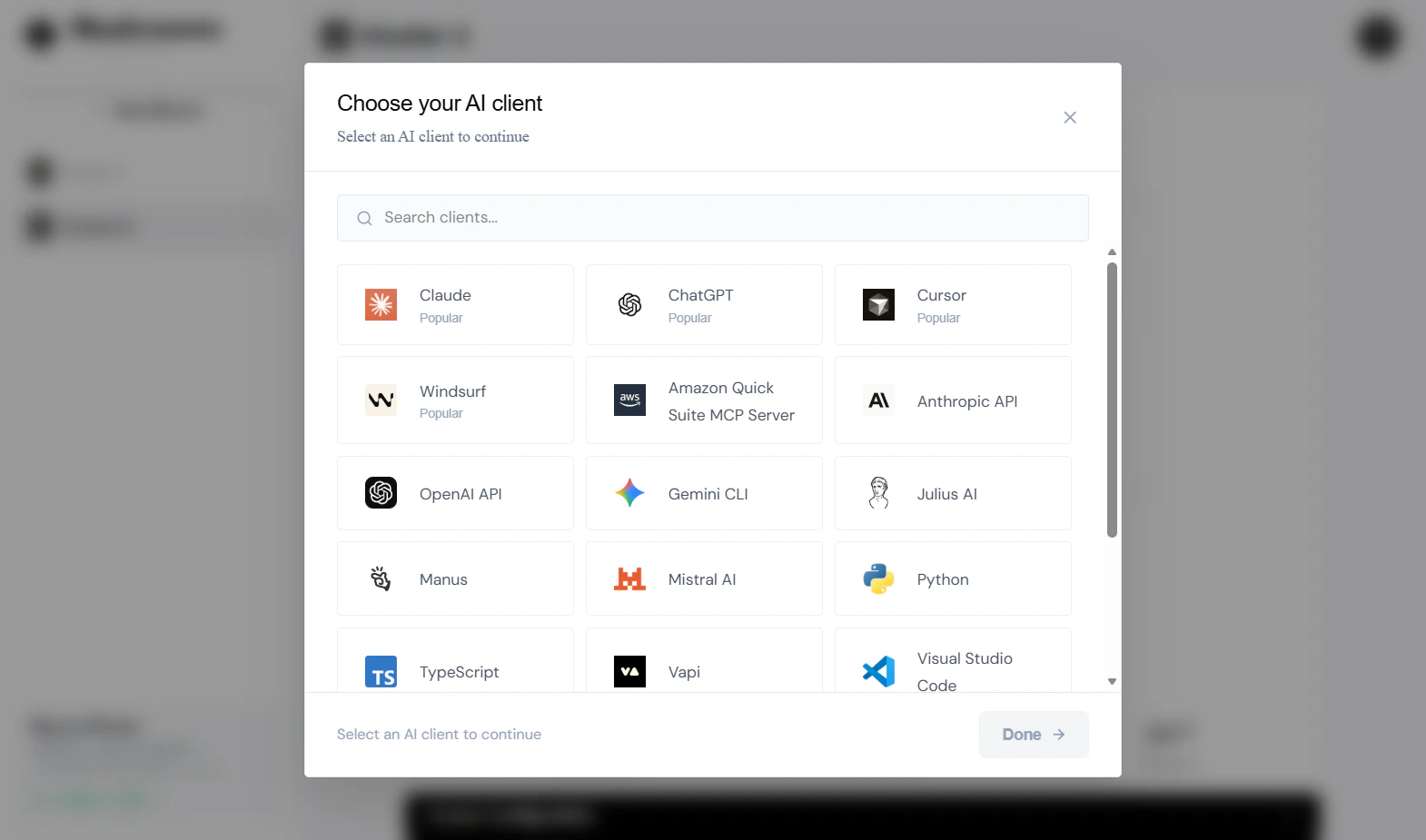
Open [ViaSocket Mushrooms](https://mushrooms.viasocket.com/) and click **+ New Cluster**. ViaSocket will prompt you to choose the AI client this Cluster will connect to — select Claude, Cursor, ChatGPT, or whichever client you use.
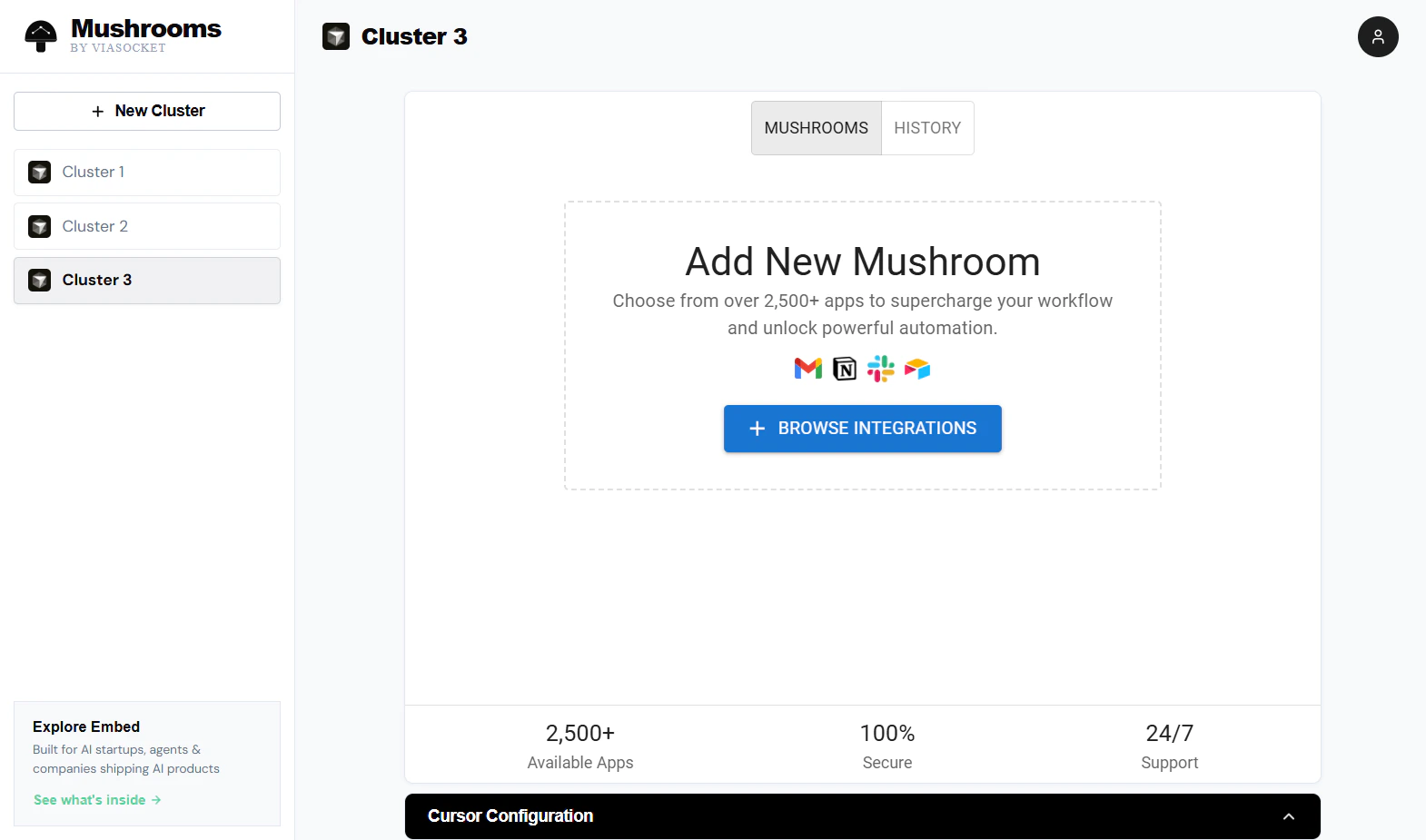
 Inside your Cluster, click **+ BROWSE INTEGRATIONS** to open the Mushrooms library — a catalog of 2,500+ apps you can give your AI access to.
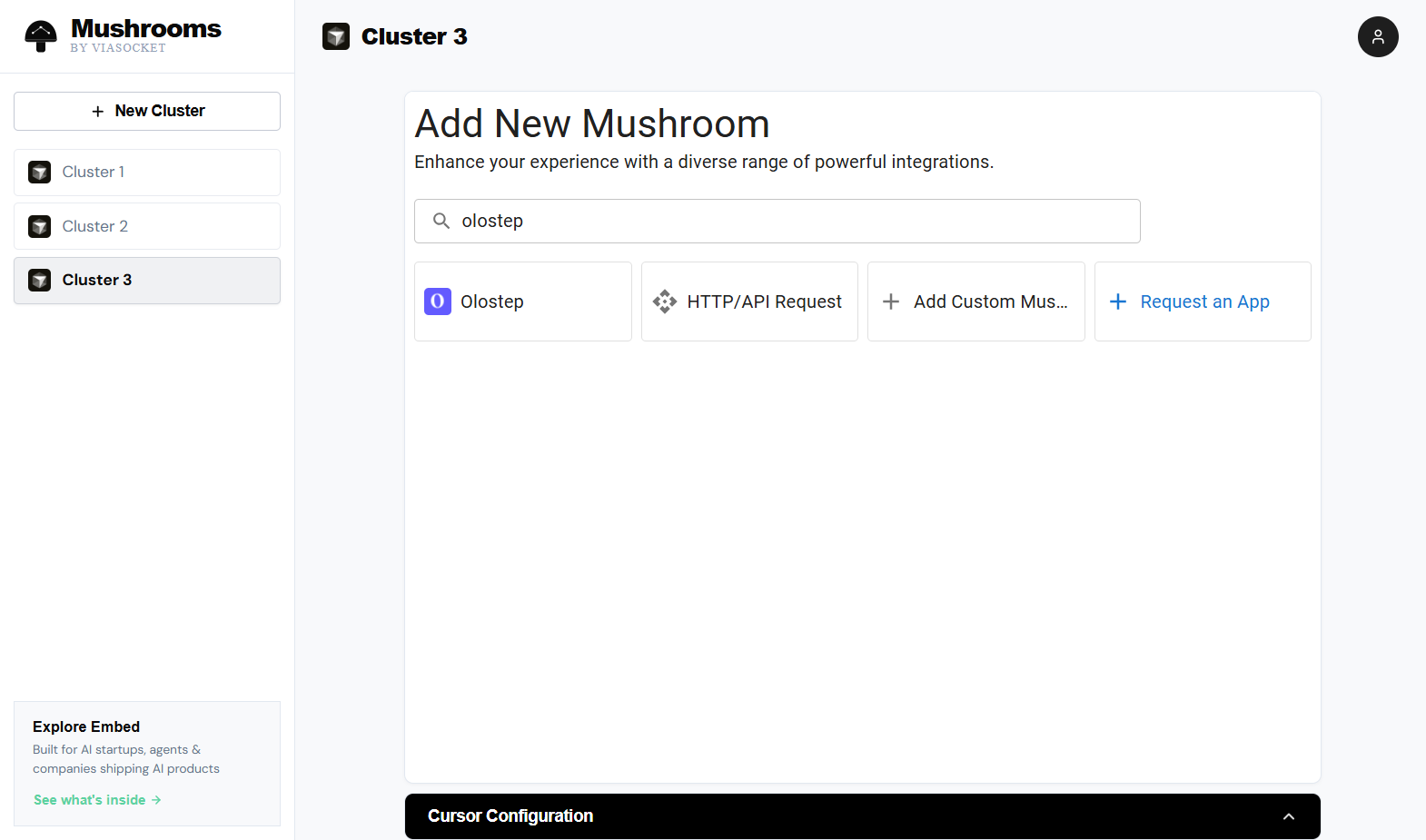
 Search for **olostep** in the search bar. Select **Olostep** from the results.
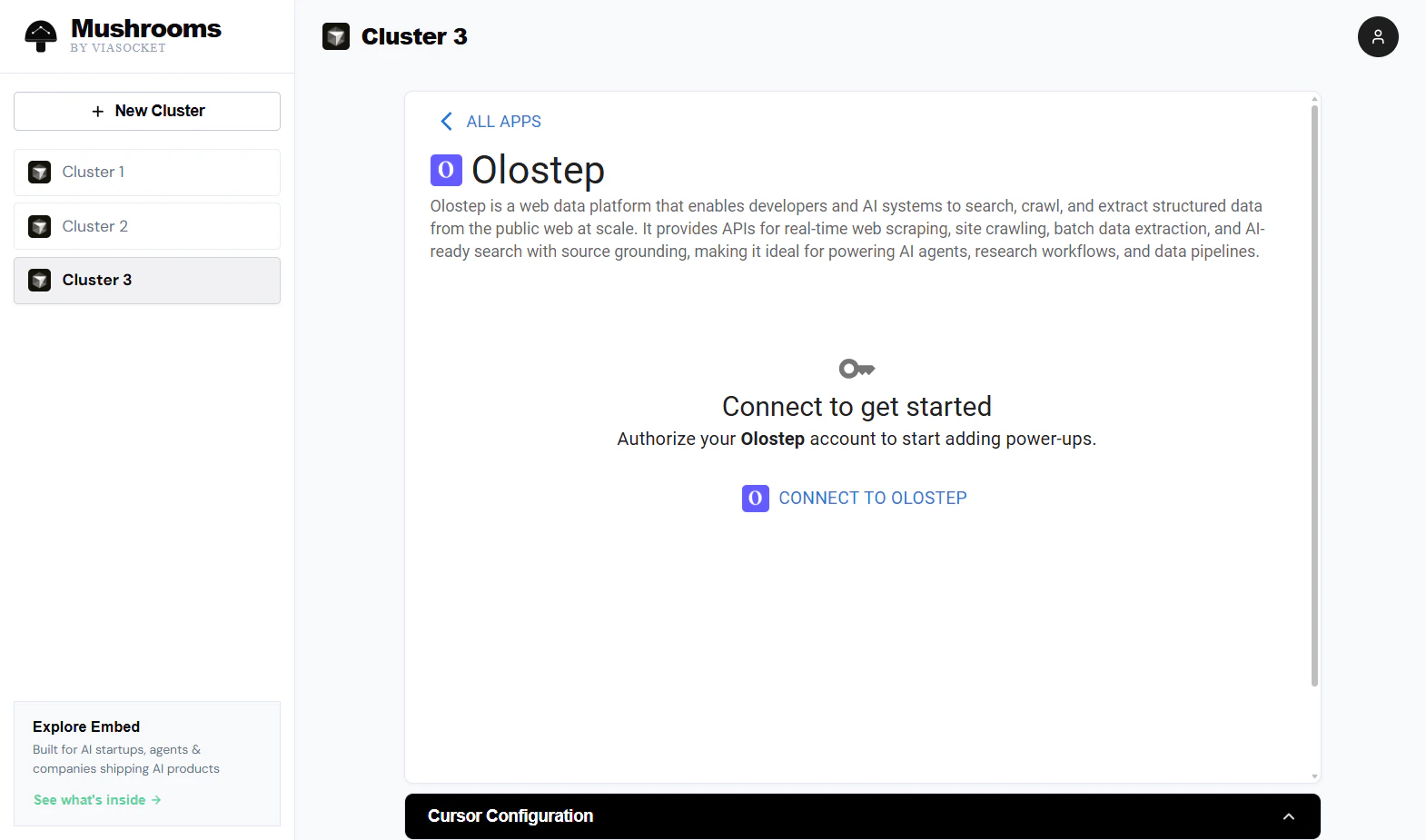
 On the Olostep detail page, click **CONNECT TO OLOSTEP** to authorize your account and start adding Olostep actions to your Cluster.
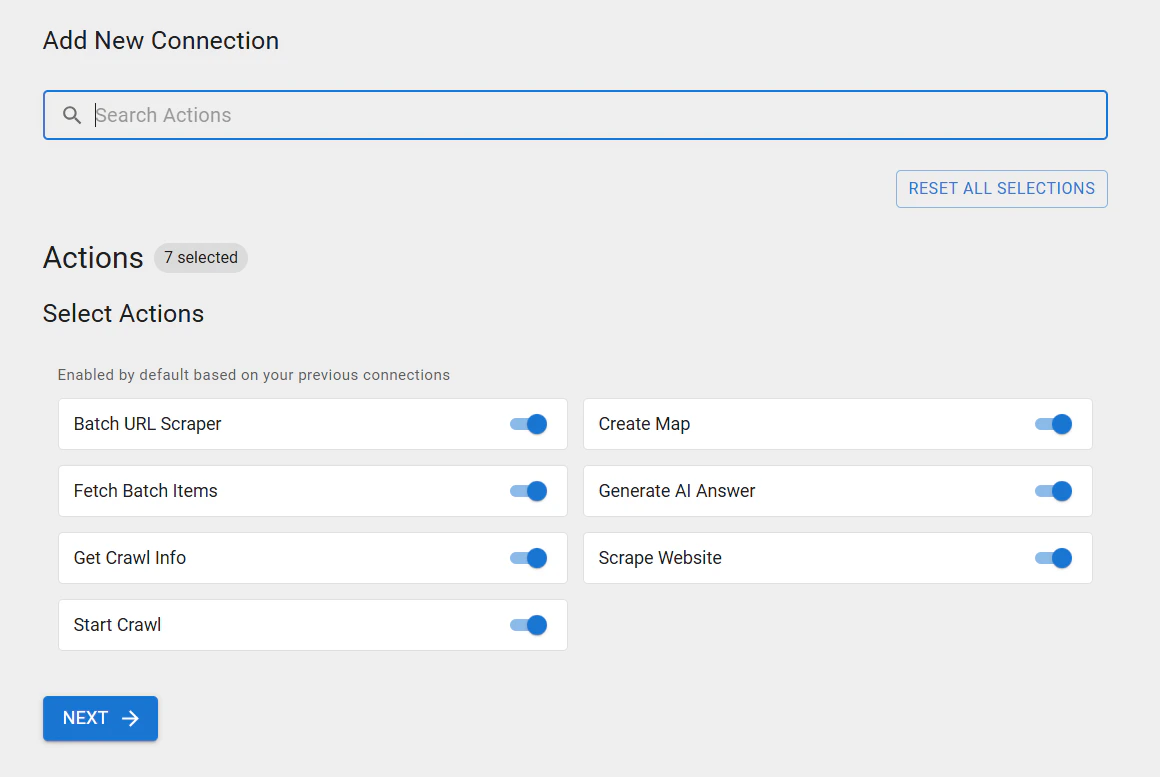
 Choose which Olostep actions your AI client can use. All seven are enabled by default — toggle off any you don't need, then click **NEXT**.
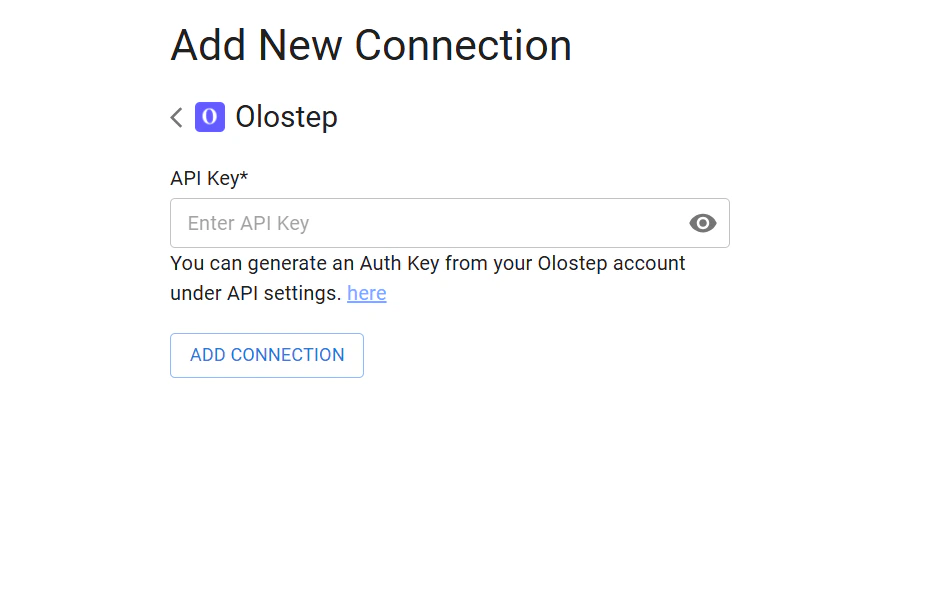
 Paste your Olostep API key into the **API Key** field and click **ADD CONNECTION**. ViaSocket will verify the key and save the credential.
 Get your key from the [Olostep dashboard →](https://olostep.com/dashboard)
Olostep now appears as an enabled Mushroom in your Cluster. Copy the **MCP Endpoint URL** (or the full JSON config block) from the **Cursor Configuration** panel and paste it into your AI client's MCP settings file.
Get your key from the [Olostep dashboard →](https://olostep.com/dashboard)
Olostep now appears as an enabled Mushroom in your Cluster. Copy the **MCP Endpoint URL** (or the full JSON config block) from the **Cursor Configuration** panel and paste it into your AI client's MCP settings file.
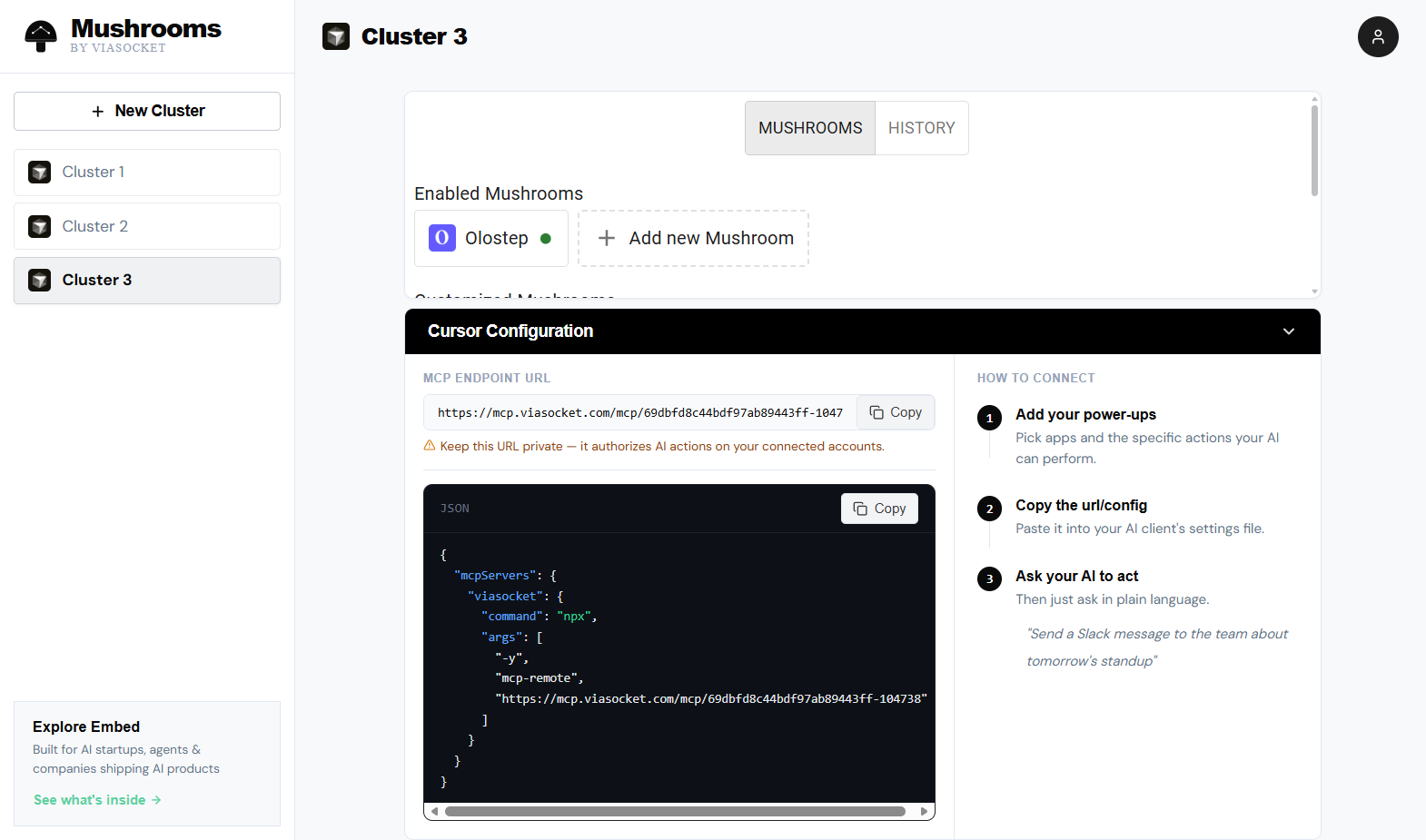 The config looks like this — paste it into your AI client's settings:
```json theme={null}
{
"mcpServers": {
"viasocket": {
"type": "http",
"url": "https://mcp.viasocket.com/mcp/"
}
}
}
```
***
## Actions
Pull content from any URL as Markdown, HTML, JSON, or plain text. Handles JS-rendered pages with optional wait times and country targeting.
Ask a natural-language question and get a cited answer grounded in pages you provide or a live web search.
Submit up to 100,000 URLs in one job, processed in parallel. Returns a `batch_id` for async retrieval.
Retrieve the results of a completed batch job using its `batch_id`.
Start from a seed URL, follow links, and scrape all subpages. Returns a `crawl_id`.
Check the status and retrieve results for a running or completed crawl by `crawl_id`.
Get every URL on a site without scraping content. Useful for discovery before a batch job.
***
## Example: Ask Claude to research a competitor
Once your MCP endpoint is configured in Claude, you can issue plain-language instructions like:
> *"Scrape the pricing page at acme.com/pricing and give me a summary of their plans and prices."*
Claude will call Olostep's **Scrape Website** action through ViaSocket, return the page content, and summarize it — no workflow builder, no code.
You can chain actions the same way:
> *"Map all the pages on docs.example.com, then batch-scrape the first 50 and build a knowledge base summary."*
***
## Troubleshooting
Copy the key directly from [olostep.com/dashboard](https://olostep.com/dashboard) with no trailing spaces. Delete and recreate the Olostep connection in ViaSocket if the error persists.
Make sure you've pasted the MCP endpoint URL (or JSON config block) into the correct settings file for your AI client. For Claude Desktop, this is `claude_desktop_config.json`. For Cursor, it's `.cursor/mcp.json` in your project or the global Cursor settings. Restart the client after saving.
Increase the wait time when calling **Scrape Website** (try 2000–5000ms for JS-heavy pages). Confirm the URL is publicly accessible without a login.
The endpoint URL is tied to your Cluster. If you delete and recreate the Cluster, you'll get a new URL and will need to update your AI client config. Keep the URL private — it authorizes all actions on your connected accounts.
***
## Related
Full reference for the scrape endpoint
How batch jobs work and how to retrieve results
Crawl configuration and result retrieval
URL discovery and filtering options
Use Olostep's native MCP server directly
ViaSocket platform
The config looks like this — paste it into your AI client's settings:
```json theme={null}
{
"mcpServers": {
"viasocket": {
"type": "http",
"url": "https://mcp.viasocket.com/mcp/"
}
}
}
```
***
## Actions
Pull content from any URL as Markdown, HTML, JSON, or plain text. Handles JS-rendered pages with optional wait times and country targeting.
Ask a natural-language question and get a cited answer grounded in pages you provide or a live web search.
Submit up to 100,000 URLs in one job, processed in parallel. Returns a `batch_id` for async retrieval.
Retrieve the results of a completed batch job using its `batch_id`.
Start from a seed URL, follow links, and scrape all subpages. Returns a `crawl_id`.
Check the status and retrieve results for a running or completed crawl by `crawl_id`.
Get every URL on a site without scraping content. Useful for discovery before a batch job.
***
## Example: Ask Claude to research a competitor
Once your MCP endpoint is configured in Claude, you can issue plain-language instructions like:
> *"Scrape the pricing page at acme.com/pricing and give me a summary of their plans and prices."*
Claude will call Olostep's **Scrape Website** action through ViaSocket, return the page content, and summarize it — no workflow builder, no code.
You can chain actions the same way:
> *"Map all the pages on docs.example.com, then batch-scrape the first 50 and build a knowledge base summary."*
***
## Troubleshooting
Copy the key directly from [olostep.com/dashboard](https://olostep.com/dashboard) with no trailing spaces. Delete and recreate the Olostep connection in ViaSocket if the error persists.
Make sure you've pasted the MCP endpoint URL (or JSON config block) into the correct settings file for your AI client. For Claude Desktop, this is `claude_desktop_config.json`. For Cursor, it's `.cursor/mcp.json` in your project or the global Cursor settings. Restart the client after saving.
Increase the wait time when calling **Scrape Website** (try 2000–5000ms for JS-heavy pages). Confirm the URL is publicly accessible without a login.
The endpoint URL is tied to your Cluster. If you delete and recreate the Cluster, you'll get a new URL and will need to update your AI client config. Keep the URL private — it authorizes all actions on your connected accounts.
***
## Related
Full reference for the scrape endpoint
How batch jobs work and how to retrieve results
Crawl configuration and result retrieval
URL discovery and filtering options
Use Olostep's native MCP server directly
ViaSocket platform