> ## Documentation Index
> Fetch the complete documentation index at: https://docs.olostep.com/llms.txt
> Use this file to discover all available pages before exploring further.
# Olostep + Zapier
> Add web scraping, AI-powered research, batch jobs, crawls, and site maps to any Zap, no code required.
The verified [Olostep app on Zapier](https://zapier.com/apps/olostep/integrations) gives you five actions inside Zapier's visual builder: scrape a URL, get AI answers, batch-scrape thousands of URLs, crawl a site, or map all its links, then connect the results to any of 8,000+ apps.
[View on Zapier →](https://zapier.com/apps/olostep/integrations)
## Before you start
* **An Olostep account with an API key:** [get one free](https://olostep.com/dashboard), no credit card required. Your first 500 credits are included.
* **A Zapier account:** any plan works. Free plans can run Zaps manually; paid plans support scheduled and multi-step Zaps.
* **No coding required:** everything in this guide is done through Zapier's visual editor.
***
## Setup
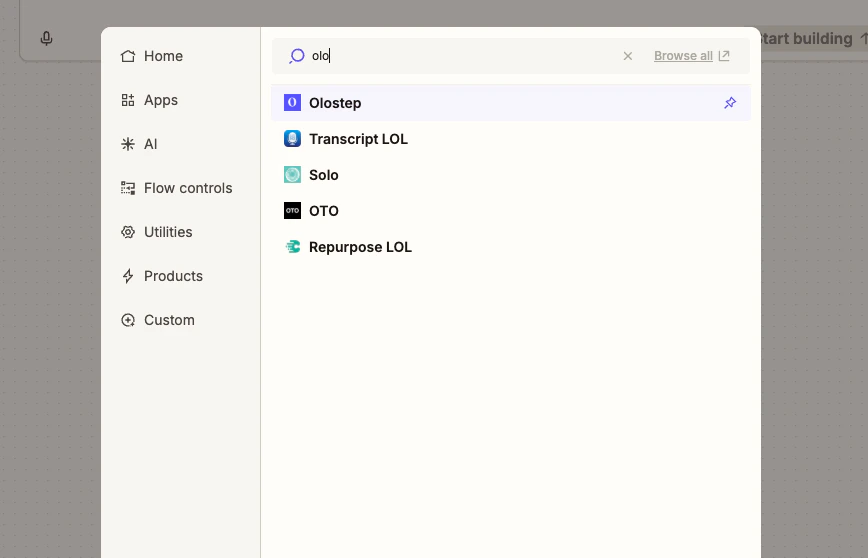
Open any Zap, click **+** to add an action, and search for **Olostep**. Select **Olostep** from the results.
 Click **Sign in to Olostep**. Paste your API key into the field and click **Yes, Continue to Olostep**. Zapier will verify the key and save the credential for all future Zaps.
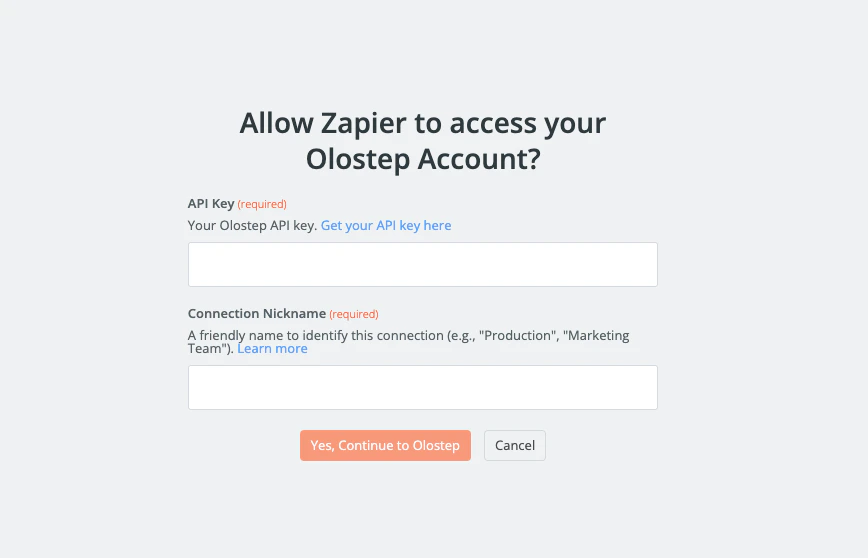 Get your key from the [Olostep dashboard →](https://olostep.com/dashboard)
With your account connected, pick one of the five Olostep actions from the **Action** dropdown and fill in the required fields.
Get your key from the [Olostep dashboard →](https://olostep.com/dashboard)
With your account connected, pick one of the five Olostep actions from the **Action** dropdown and fill in the required fields.
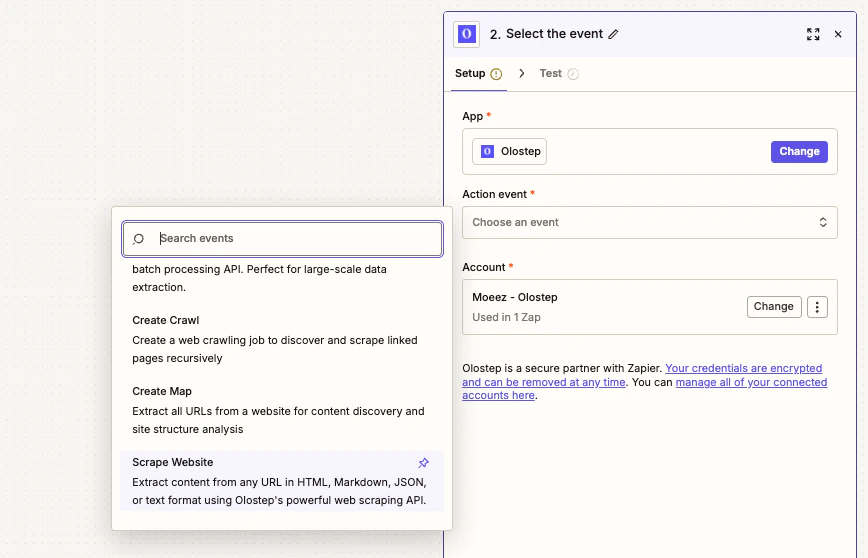 * **URL to Scrape:** map it from your trigger or enter manually
* **Output Format:** choose `Markdown`, `HTML`, `JSON`, or `Text`
* **URL to Scrape:** map it from your trigger or enter manually
* **Output Format:** choose `Markdown`, `HTML`, `JSON`, or `Text`
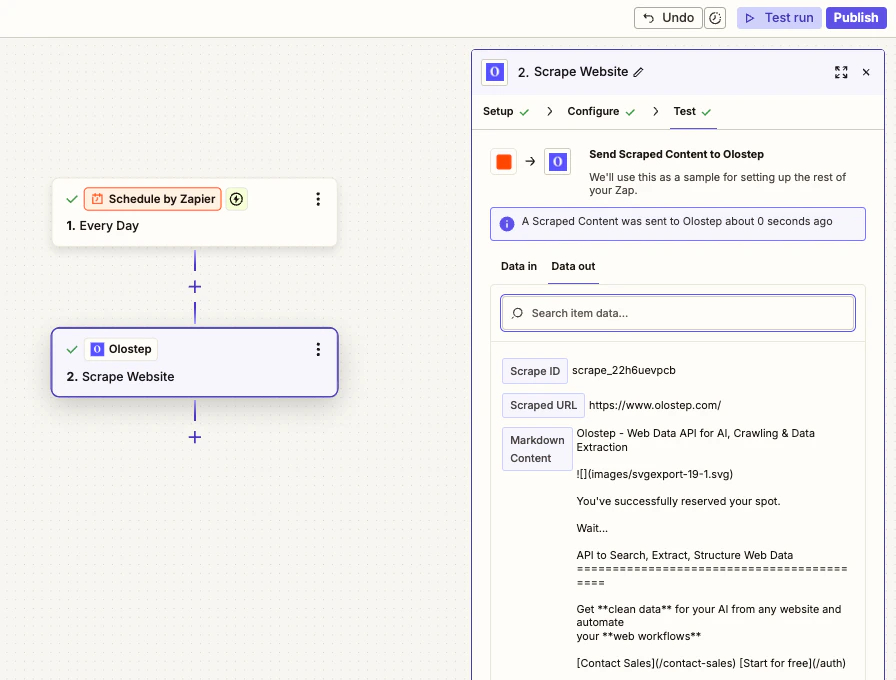
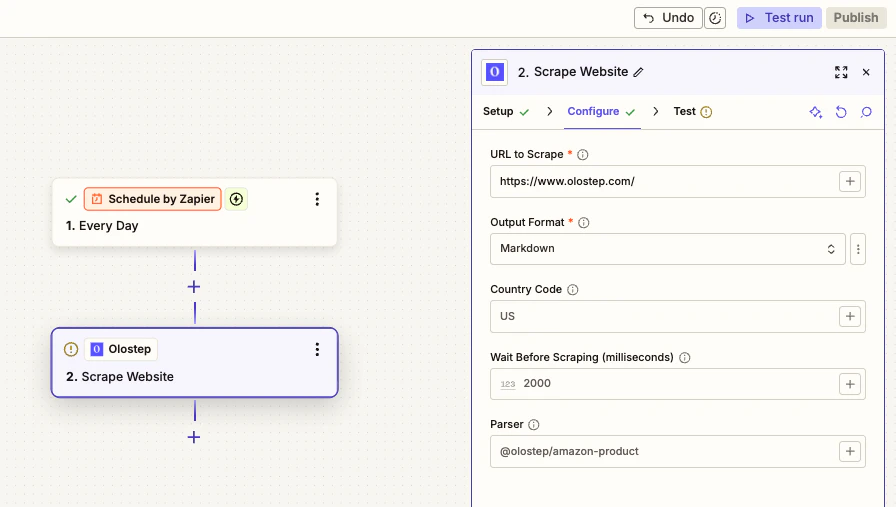 Click **Test step** to run a live request and confirm the output. Once it looks right, connect downstream steps and publish your Zap.
 ***
## Actions
Pull content from any URL as Markdown, HTML, JSON, or plain text. Handles JS-rendered pages with optional wait times and country targeting.
Ask a natural-language question and get a cited answer grounded in pages you provide or a live web search.
Submit up to 100,000 URLs in one job, processed in parallel. Returns a `batch_id`; retrieve results asynchronously.
Start from a URL, follow links, and scrape all subpages. Good for docs sites, blogs, or full-site ingestion. Returns a `crawl_id`.
Get every URL on a site without scraping content. Use it for discovery before a batch job. Returns a `map_id`.
**Batch, Crawl, and Map are async.** Store the returned ID and use a Delay step or a second Zap to retrieve results once processing completes.
***
## Example workflow: Daily competitor briefing
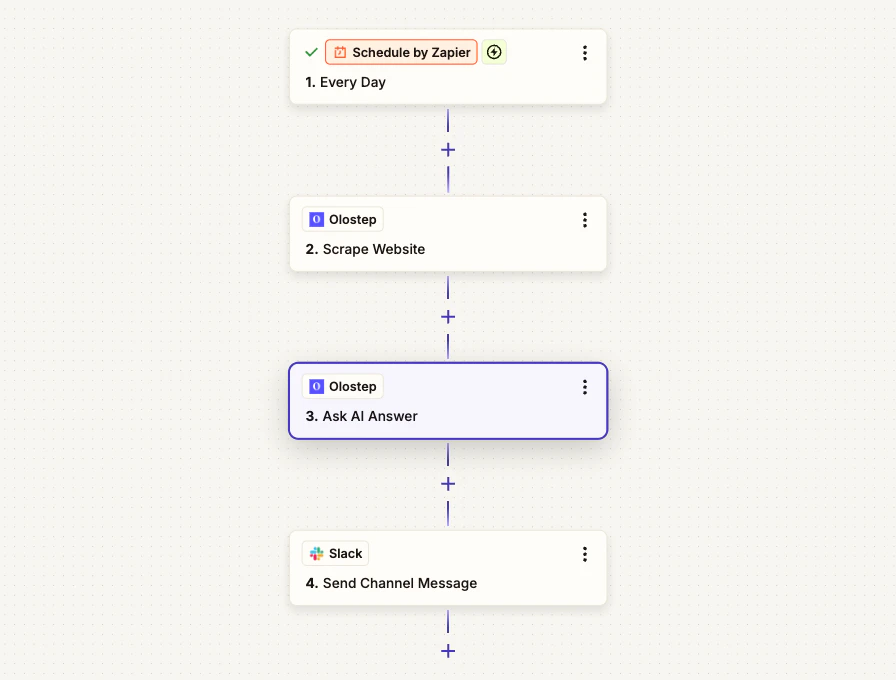
**What it does:** Every morning, this Zap scrapes a competitor page, asks Olostep AI Answer to summarize key updates from that page, and posts the final briefing with citations to Slack.
**Nodes used:** Schedule by Zapier -> Olostep Scrape Website -> Olostep Ask AI Answer -> Slack
***
## Actions
Pull content from any URL as Markdown, HTML, JSON, or plain text. Handles JS-rendered pages with optional wait times and country targeting.
Ask a natural-language question and get a cited answer grounded in pages you provide or a live web search.
Submit up to 100,000 URLs in one job, processed in parallel. Returns a `batch_id`; retrieve results asynchronously.
Start from a URL, follow links, and scrape all subpages. Good for docs sites, blogs, or full-site ingestion. Returns a `crawl_id`.
Get every URL on a site without scraping content. Use it for discovery before a batch job. Returns a `map_id`.
**Batch, Crawl, and Map are async.** Store the returned ID and use a Delay step or a second Zap to retrieve results once processing completes.
***
## Example workflow: Daily competitor briefing
**What it does:** Every morning, this Zap scrapes a competitor page, asks Olostep AI Answer to summarize key updates from that page, and posts the final briefing with citations to Slack.
**Nodes used:** Schedule by Zapier -> Olostep Scrape Website -> Olostep Ask AI Answer -> Slack
 ***
### Step 1: Add a Schedule trigger
In Zapier, create a new Zap and set the trigger to **Schedule by Zapier**. Set it to run **Every Day** at a time that works for your team (e.g. 8 AM).
### Step 2: Add Olostep Scrape Website
Add an **Olostep** action and choose **Scrape Website**. Set:
* **URL:** `https://competitor.com/blog`
* **Output Format:** Markdown
Markdown keeps the page content clean for the next AI Answer step.
### Step 3: Add Olostep Ask AI Answer
Add a second **Olostep** action and choose **Ask AI Answer**. Set:
* **Question:** `What are the key updates, announcements, product changes, or pricing changes on this page today? Return a concise briefing with bullet points and include citations.`
* **Context URLs (JSON Array):** map the **Scraped URL** from step 2
* **Format:** Markdown
* **Include Citations:** true
### Step 4: Send to Slack
Add a **Slack** action set to **Send Channel Message**. Map:
* **Channel:** `#competitive-intel`
* **Message Text:** `Daily Competitor Briefing`
* **Message Body:** `{{Answer (Markdown)}}`
### What you get
Every morning your Slack channel receives a message like:
> **Daily Competitor Briefing**
>
> * Launched a new integration for ecommerce workflows
> * Updated pricing page with a new mid-tier plan
> * Published two new blog posts about automation best practices
>
> *Sources: competitor.com/blog, competitor.com/pricing*
From here you can extend this Zap: add a Filter to only post if specific keywords appear, write briefings to Google Sheets for tracking, or run separate Zaps for different competitor URLs.
***
## Parsers
Add a parser ID to the **Parser** field on any Scrape or Batch action to get structured data instead of raw content:
| Parser | Extracts |
| ---------------------------- | ------------------------------------------------ |
| `@olostep/amazon-product` | Title, price, rating, reviews, images, variants |
| `@olostep/google-search` | Result titles, URLs, snippets |
| `@olostep/google-maps` | Business name, address, rating, reviews |
| `@olostep/extract-emails` | Email addresses from any page |
| `@olostep/extract-socials` | Social profile links (X, GitHub, LinkedIn, etc.) |
| `@olostep/extract-calendars` | Google Calendar and ICS links |
See the full list in the [Olostep parser store →](https://www.olostep.com/store)
***
## Zapier Limitations & Workarounds
### Task limits
Zapier counts each action as one task against your plan's limit.
**Workaround:** Use **Batch Scrape URLs** to process multiple URLs as a single task instead of looping a single-scrape action.
### Execution timeout
Zaps timeout after 30 seconds. Crawls and large batch jobs take longer than that.
**Workaround:** Store the returned `crawl_id` or `batch_id` and retrieve results in a separate Zap triggered by a webhook or a scheduled delay.
### Data size limits
Zapier caps the data size that can pass between steps, which can be an issue with large scrape payloads.
**Workaround:** Use hosted output URLs returned by Olostep to fetch large content separately rather than passing raw content between steps.
### Polling triggers
Most Zapier triggers poll on a 5–15 minute interval, not instantly.
**Workaround:** Use Zapier's **Webhooks** trigger for instant notification, or schedule Zaps at fixed times rather than relying on near-real-time polling.
***
## Troubleshooting
Copy the key directly from [olostep.com/dashboard](https://olostep.com/dashboard) with no trailing spaces. Disconnect and reconnect the Olostep account in Zapier if the error persists.
Increase **Wait Before Scraping** (try 2000–5000ms for JS-heavy pages). Confirm the URL is publicly accessible without a login. If a specific domain is consistently failing, contact [info@olostep.com](mailto:info@olostep.com).
The **URLs to Scrape** field expects a JSON array:
```json theme={null}
[
{ "url": "https://example.com/page-1", "custom_id": "p1" },
{ "url": "https://example.com/page-2", "custom_id": "p2" }
]
```
Use a **Code by Zapier** step upstream to build this array from your data if needed.
Add a **Delay** step between scrape actions, or switch to **Batch Scrape URLs** instead of looping single scrapes. Check current usage in the [dashboard](https://olostep.com/dashboard).
These operations are async by design. Store the returned ID immediately after the action, then use a second Zap or a scheduled poll to retrieve results later.
***
## Related
Full reference for the scrape endpoint
How batch jobs work and how to retrieve results
Crawl configuration and result retrieval
URL discovery and filtering options
Zapier platform
***
### Step 1: Add a Schedule trigger
In Zapier, create a new Zap and set the trigger to **Schedule by Zapier**. Set it to run **Every Day** at a time that works for your team (e.g. 8 AM).
### Step 2: Add Olostep Scrape Website
Add an **Olostep** action and choose **Scrape Website**. Set:
* **URL:** `https://competitor.com/blog`
* **Output Format:** Markdown
Markdown keeps the page content clean for the next AI Answer step.
### Step 3: Add Olostep Ask AI Answer
Add a second **Olostep** action and choose **Ask AI Answer**. Set:
* **Question:** `What are the key updates, announcements, product changes, or pricing changes on this page today? Return a concise briefing with bullet points and include citations.`
* **Context URLs (JSON Array):** map the **Scraped URL** from step 2
* **Format:** Markdown
* **Include Citations:** true
### Step 4: Send to Slack
Add a **Slack** action set to **Send Channel Message**. Map:
* **Channel:** `#competitive-intel`
* **Message Text:** `Daily Competitor Briefing`
* **Message Body:** `{{Answer (Markdown)}}`
### What you get
Every morning your Slack channel receives a message like:
> **Daily Competitor Briefing**
>
> * Launched a new integration for ecommerce workflows
> * Updated pricing page with a new mid-tier plan
> * Published two new blog posts about automation best practices
>
> *Sources: competitor.com/blog, competitor.com/pricing*
From here you can extend this Zap: add a Filter to only post if specific keywords appear, write briefings to Google Sheets for tracking, or run separate Zaps for different competitor URLs.
***
## Parsers
Add a parser ID to the **Parser** field on any Scrape or Batch action to get structured data instead of raw content:
| Parser | Extracts |
| ---------------------------- | ------------------------------------------------ |
| `@olostep/amazon-product` | Title, price, rating, reviews, images, variants |
| `@olostep/google-search` | Result titles, URLs, snippets |
| `@olostep/google-maps` | Business name, address, rating, reviews |
| `@olostep/extract-emails` | Email addresses from any page |
| `@olostep/extract-socials` | Social profile links (X, GitHub, LinkedIn, etc.) |
| `@olostep/extract-calendars` | Google Calendar and ICS links |
See the full list in the [Olostep parser store →](https://www.olostep.com/store)
***
## Zapier Limitations & Workarounds
### Task limits
Zapier counts each action as one task against your plan's limit.
**Workaround:** Use **Batch Scrape URLs** to process multiple URLs as a single task instead of looping a single-scrape action.
### Execution timeout
Zaps timeout after 30 seconds. Crawls and large batch jobs take longer than that.
**Workaround:** Store the returned `crawl_id` or `batch_id` and retrieve results in a separate Zap triggered by a webhook or a scheduled delay.
### Data size limits
Zapier caps the data size that can pass between steps, which can be an issue with large scrape payloads.
**Workaround:** Use hosted output URLs returned by Olostep to fetch large content separately rather than passing raw content between steps.
### Polling triggers
Most Zapier triggers poll on a 5–15 minute interval, not instantly.
**Workaround:** Use Zapier's **Webhooks** trigger for instant notification, or schedule Zaps at fixed times rather than relying on near-real-time polling.
***
## Troubleshooting
Copy the key directly from [olostep.com/dashboard](https://olostep.com/dashboard) with no trailing spaces. Disconnect and reconnect the Olostep account in Zapier if the error persists.
Increase **Wait Before Scraping** (try 2000–5000ms for JS-heavy pages). Confirm the URL is publicly accessible without a login. If a specific domain is consistently failing, contact [info@olostep.com](mailto:info@olostep.com).
The **URLs to Scrape** field expects a JSON array:
```json theme={null}
[
{ "url": "https://example.com/page-1", "custom_id": "p1" },
{ "url": "https://example.com/page-2", "custom_id": "p2" }
]
```
Use a **Code by Zapier** step upstream to build this array from your data if needed.
Add a **Delay** step between scrape actions, or switch to **Batch Scrape URLs** instead of looping single scrapes. Check current usage in the [dashboard](https://olostep.com/dashboard).
These operations are async by design. Store the returned ID immediately after the action, then use a second Zap or a scheduled poll to retrieve results later.
***
## Related
Full reference for the scrape endpoint
How batch jobs work and how to retrieve results
Crawl configuration and result retrieval
URL discovery and filtering options
Zapier platform